
Data sources
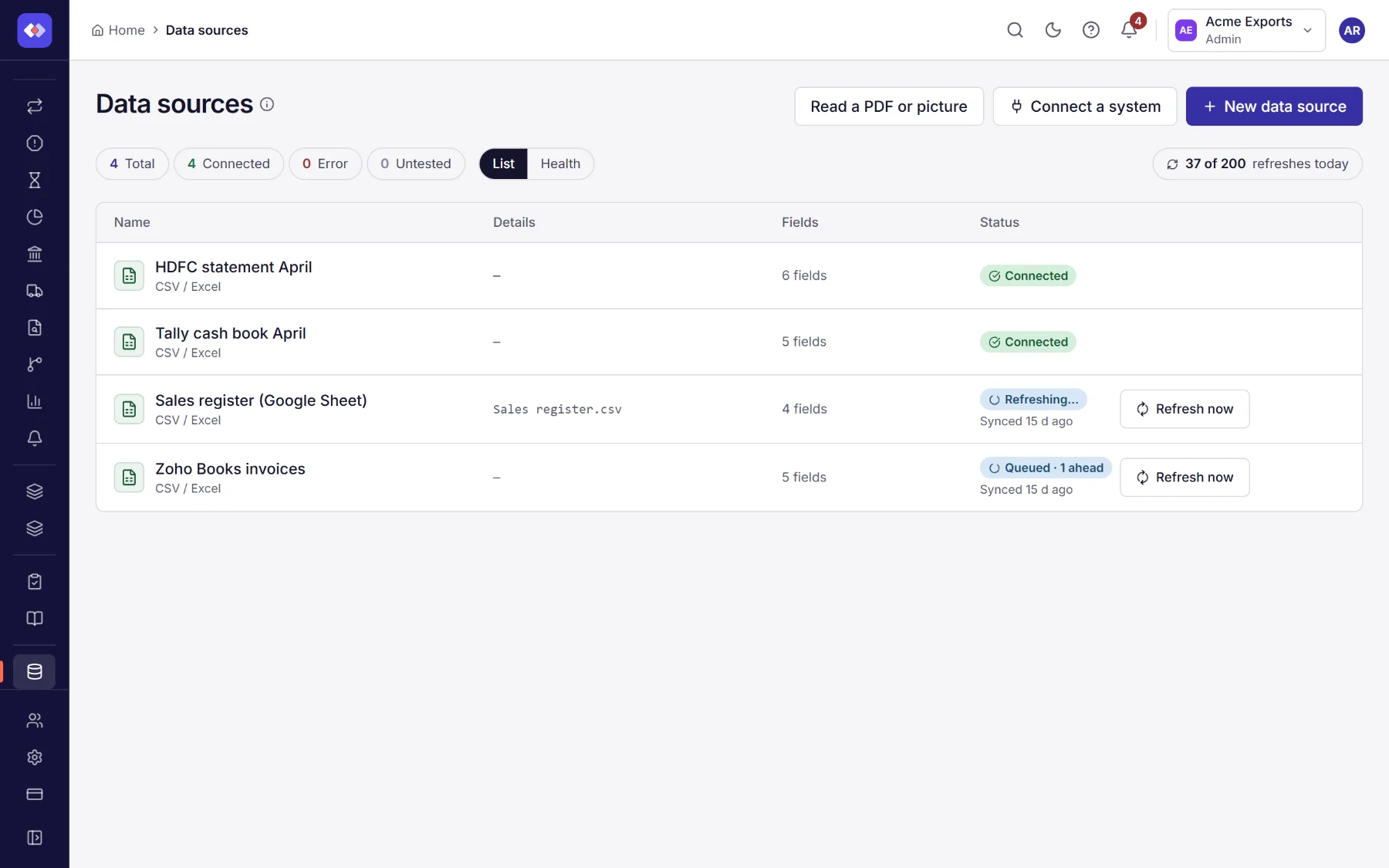
A data source is a table of records that reconciliations read: a bank statement, a ledger export, an ERP report, a database view. Each side of a reconciliation reads one data source. Data sources live in Data → Data sources.
Ways to add data
Section titled “Ways to add data”At the top of the page:
| Button | Use it for |
|---|---|
| New data source | Uploading a file, starting from a template for a known file format, or using a web link. |
| Connect a system | Reading from an accounting system, ERP, database (PostgreSQL, MySQL, SQL Server), warehouse, file server, cloud storage or Airtable. See Connectors. |
| Read a PDF or picture | Statements you only have as a PDF, a scan or a photo. |
Uploading a file
Section titled “Uploading a file”- Choose New data source, keep Upload a file selected, and give it a name, such as HDFC statement April.
- Drop the file on the upload area, or click it to browse. Supported: CSV, Excel, bank statements in SWIFT MT940, MT950 and MT942, camt.053, OFX and BAI2, and GST returns (GSTR-2B or GSTR-2A JSON), which are read directly into rows.
- For an Excel file, choose the sheet (by name or position). For any file, say whether the first row holds the column names and on which row the data starts (useful when a report has a title block above the table).
- Check the columns that were found. Each has a name and a type: text, number or date. Change any that are wrong. What do the columns mean? asks the AI to explain each column from a sample, if AI is on in your workspace.
- Save.
Number parsing settings apply to the number columns: the locale decides which character separates thousands
and decimals (1,234.50 in en-US, 1,23,456.78 in en-IN, 1.234,50 in de-DE, 1 234,50 in fr-FR, 1'234.50 in
de-CH), and decimal places how many digits are kept. A column can have its own locale and decimal places, set next to
its type. When a file’s numbers are only readable one way, such as 1.234,50, the column gets that locale when the
file is read. Each number is then stored as a plain number (1234.50), so matching, rules and results all read it the
same way. A value that is not a number in its locale is left as written, for
data quality rules to catch.
Starting from a template
Section titled “Starting from a template”When your file is in a known format, a template sets up the data source’s columns and types for you, and makes sure every file you upload to it later is in that format.
-
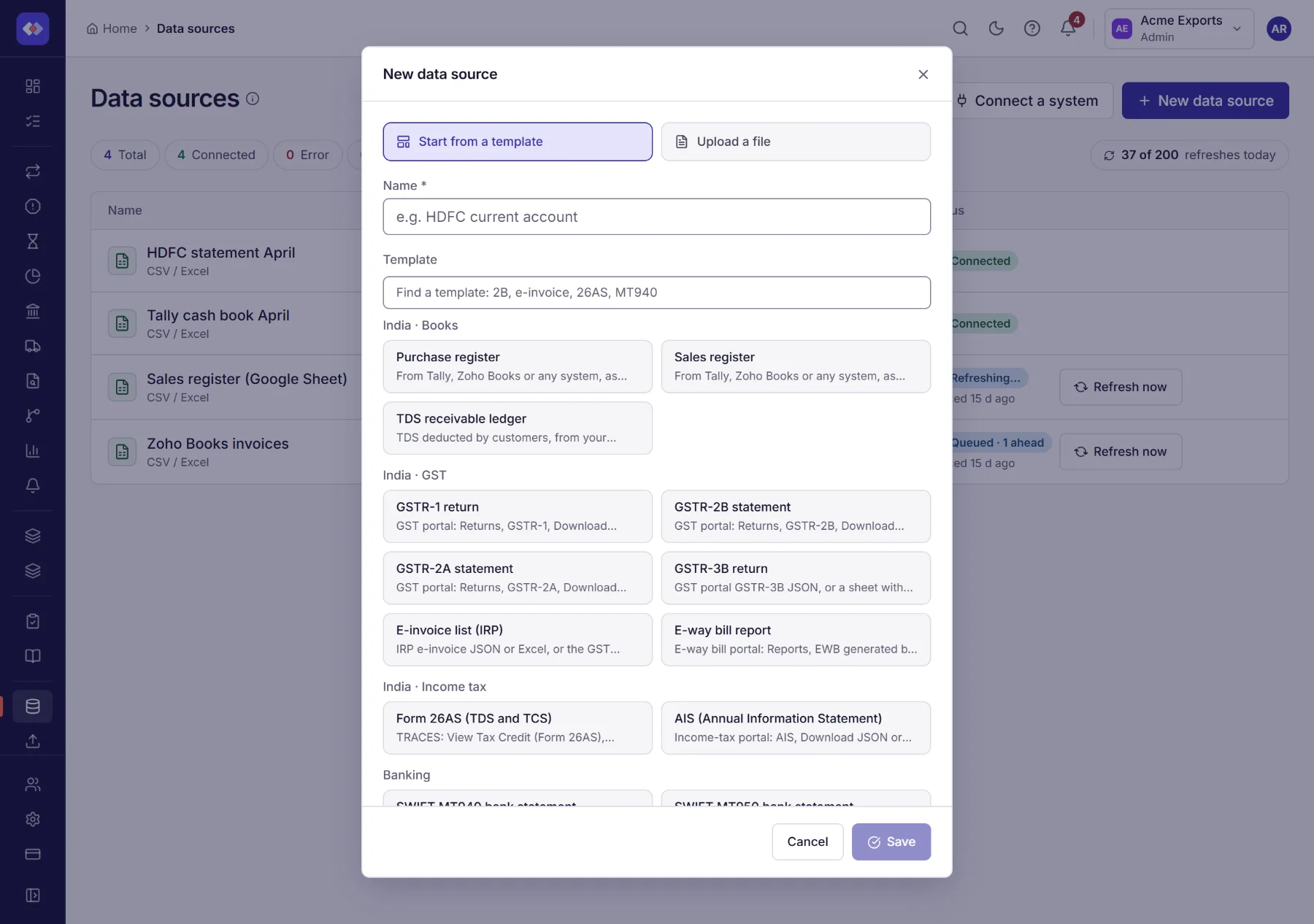
Choose New data source, then Start from a template.
-
Pick the format. Templates are grouped (Banking, India · GST, India · Income tax, India · Books); type in the search box to find one, for example
2B,e-invoiceor26AS:Template File GSTR-1 return GST portal, Returns, GSTR-1, Download (JSON). One row per invoice or note. GSTR-2B statement GST portal, Returns, GSTR-2B, Download (JSON or Excel). One row per supplier document. GSTR-2A statement GST portal, Returns, GSTR-2A, Download (JSON). Says whether each supplier has filed. GSTR-3B return The filed GSTR-3B (JSON), or a sheet of monthly figures. One row per table line. E-invoice list (IRP) E-invoice JSON or Excel from the Invoice Registration Portal. One row per IRN. E-way bill report E-way bill portal, Reports, EWB generated by me (Excel). One row per e-way bill. Form 26AS (TDS and TCS) TRACES, View Tax Credit, Export as Text. One row per deduction. AIS (Annual Information Statement) Income-tax portal, AIS, Download (JSON or CSV). One row per TDS or TCS entry. Purchase register, Sales register From Tally, Zoho Books or any system (Excel or CSV). One row per invoice. TDS receivable ledger TDS your customers deducted, from your books (Excel or CSV). SWIFT MT940 bank statement The end-of-day statement from your bank (.sta, .mt940, .940 or .txt). SWIFT MT950 bank statement The bank-to-bank statement, often used for nostro accounts. SWIFT MT942 interim report Intraday transactions, before the day’s statement arrives. ISO 20022 camt.053 statement The XML bank statement. OFX / QFX bank download The download offered by many banks and card providers. BAI2 bank file (US) The previous-day or intraday file US banks send (.bai, .bai2 or .txt). Under the list, RefinePoint suggests the columns to use as the key, the amount and the date when you set up a reconciliation.
-
Give it a name and upload a file. If the file is not in the template’s format, RefinePoint says so and nothing is saved; pick the matching template or another file.
-
Check the columns and save.
The three SWIFT templates accept any of the three SWIFT statements, because banks label them loosely; they share the same columns. Bank statements get Date, Value Date, Amount (money out is negative), Currency, Reference, Description, Counterparty, Type and Account. GST and tax files get the party’s GSTIN or TAN and name, the document number, date and type, the values, IGST, CGST, SGST and cess, and what belongs to the file, such as ITC availability and supplier filing status for GSTR-2B and 2A. Dates are written day-month-year and amounts as plain numbers. Register and report templates (purchase and sales registers, e-way bills, TDS ledger) find their columns by heading, so a Tally or Zoho export works without renaming anything; title lines above the headings and a total line below are ignored. See GST reconciliations for what to download and where.
Using a web link
Section titled “Using a web link”Instead of a file, paste a link: a Google Sheet, a pre-signed Amazon S3 or Azure link, or a Dropbox link (https://…).
RefinePoint downloads it now, and again whenever you choose Refresh now, on a schedule if you keep it in sync, and
before every run, so the data source follows the file. See Refreshing and keeping in sync.
Reading a PDF or a picture
Section titled “Reading a PDF or a picture”For statements you only have as a PDF, a scan or a photo (PNG, JPEG or WebP, up to 10 MB):
- Choose Read a PDF or picture and pick the file.
- Choose Read the statement. The AI copies the transactions into a table.
- Check before saving: RefinePoint verifies that every balance follows from the one before and that the rows add up to the closing balance. Fix anything flagged.
- Choose Save as a data source.
Connecting a system
Section titled “Connecting a system”Connect a system opens the connector catalog: accounting systems, ERPs, databases, warehouses, SFTP and FTP servers, cloud storage and Airtable. Pick one, choose a saved connection or enter its settings, choose what to read, then review the fields and save. Data from a connected system is read again before every reconciliation run, so matches use the latest figures. See Connectors for each one.
Viewing what was read
Section titled “Viewing what was read”Open a data source to see its records: search them, choose which Columns to show, and page through the rows.
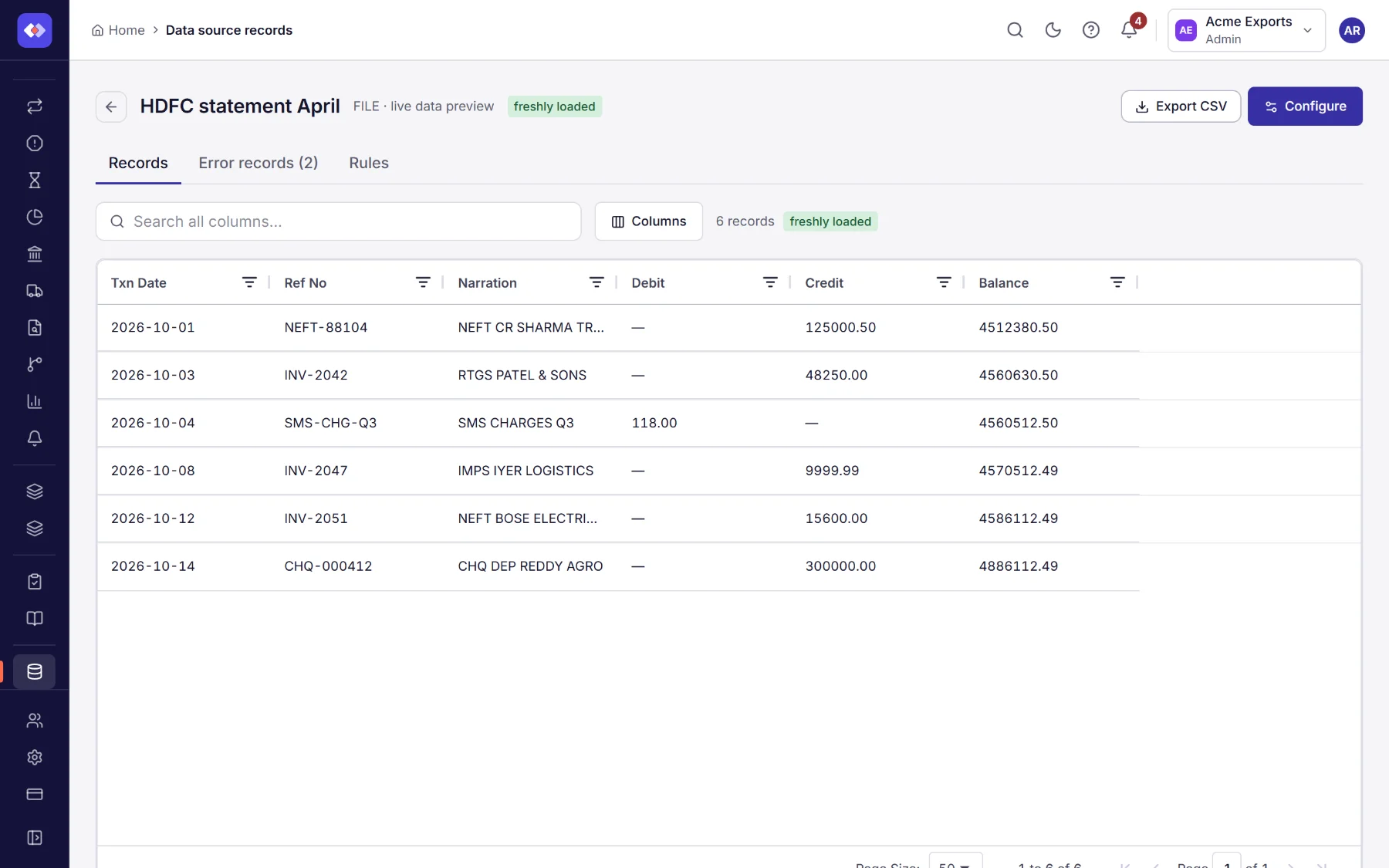
After a file is read, a line under the tabs says what was read, for example 1,240 rows read · 12 to error records. Rows that fail a data quality rule wait in the Error records tab and are left out of reconciliations until released; the Rules tab holds the rules.
Health
Section titled “Health”Health, beside the list on the Data sources page, shows how every data source is doing, with the ones that need you first. The button says how many there are, in red when something is wrong. For each data source:
| Shows | When |
|---|---|
| Never fetched yet / No file uploaded yet | It has no data. |
| Not fetched for N days | A web link, connected system or bank feed that has not been fetched for a week: is its sync on, and does the source still answer? |
| No new file for N days | An uploaded file older than five weeks. |
| The last refresh failed | With the reason; a problem. |
| Rows held as error records | Rows that failed a data quality rule and are left out of runs until fixed or released. |
| Access to the bank ends in N days / ended | A bank feed consent ending within two weeks, or ended (a problem). |
Each line links to where to put it right: the records, the error records, the data source’s settings and sync, or Bank feeds to renew a consent. A data source with nothing to look at shows All good.
Changing a data source
Section titled “Changing a data source”Edit a data source to rename it, change its column names and types, change how the file is read (sheet, header row, first data row, number parsing), or point it at a new file. A data source made from a template only accepts a new file in the same format. For a web link or a connected system, Refresh now reads it again: see Refreshing and keeping in sync.
Data that arrives on its own
Section titled “Data that arrives on its own”Files that arrive every day or month (by SFTP, the API, or a watched folder) do not need a new data source each time. File routing takes each file to the right data source and, if you like, runs the reconciliation.
Who can do what
Section titled “Who can do what”Seeing data sources, seeing their rows, creating, changing and deleting them are separate permissions (area Data in the permissions reference).