
Workspaces and signing in
Signing in
Section titled “Signing in”Open app.refinepoint.com and sign in. RefinePoint uses a single sign-on service, so the same account works for the web app and the Airtable extension. Sessions renew themselves while you work; after a long time away you are asked to sign in again.
Signing in with your company account. If your organisation uses single sign-on, choose Sign in with SSO on the RefinePoint website (or open app.refinepoint.com/sso), enter your work email and you are taken to your company’s own sign-in. If your workspace requires it, signing in with a password is refused with a message saying so. Admins set this up under Single sign-on.
Your name
Section titled “Your name”On your profile (your name at the top right, then Profile), Change name under Account changes your first and last name. The people you work with see the new name. Your email address cannot be changed; your password and sign-in methods are under your sign-in details, linked from the same card.
Two-step sign-in
Section titled “Two-step sign-in”On your profile (your name at the top right, then Profile), Two-step sign-in adds a second step to signing in: Set up an authenticator app (Google Authenticator, Microsoft Authenticator, 1Password…) or Add a security key or passkey. From then on every sign-in with your password asks for it. Manage or remove opens your account settings. A workspace can require it; if one does and you have not set it up, a banner says so and the workspace opens once you have.
Your data, and deleting your account
Section titled “Your data, and deleting your account”Your data on your profile: Download my data gives a zip of your account (profile, the workspaces you belong to, invitations, preferences, API keys you made) and the records of each workspace only you are in. Delete my account deletes the workspaces only you are in, with everything in them, takes you out of the others and deletes your sign-in, for good. If you are the only owner of a workspace others are in, make someone else an owner, or delete the workspace, first. Shared workspaces keep the work you did there, and their audit log keeps who did what.
Workspaces
Section titled “Workspaces”Everything in RefinePoint lives in a workspace: data sources, reconciliations, rules, lookup tables, members and settings. People can belong to several workspaces, with a different role in each, and switch between them from the top bar.
Your workspace. The first time you sign in, RefinePoint makes a workspace for you, named after you (Asha’s workspace), with you as its Owner. Workspaces are not created any other way: everyone has the one they were given or invited to. If you bought a plan on refinepoint.com with the same email before signing up, it is applied to it.
Its name. The owner can rename the workspace once, under Settings → Organization (Rename). No two workspaces can have the same name, whatever the capitals; after the rename the name is fixed.
Working with your team. Upgrade the workspace on Billing (or activate a licence key) and invite people under Members. It stays the same workspace, with everything in it. How many people it holds is its plan’s seats: the free plan is for you alone.
Telling workspaces apart. Each workspace has its own colour and initials in the top bar, with its name and who is in it (Just you, or 5 members · Admin with your role there); point at it to see a long name in full. On a phone, the workspace and the switcher are at the top of the menu.
Joining a workspace
Section titled “Joining a workspace”An admin invites you by email. Open the link in the email and sign in with that email address. If the link says it is not valid, has expired, or was already used, ask an admin to send a new invitation.
If you sign in with an invitation waiting for you, RefinePoint does not make a workspace of your own: you join the one you were invited to.
Working with people in other workspaces
Section titled “Working with people in other workspaces”Reconciliations, data sources and results are never shared or moved between workspaces. To let someone work on a reconciliation, an admin adds them as a member of the workspace it is in (and, if it is restricted, gives them access to it). They then switch to that workspace to work on it.
Switching workspaces
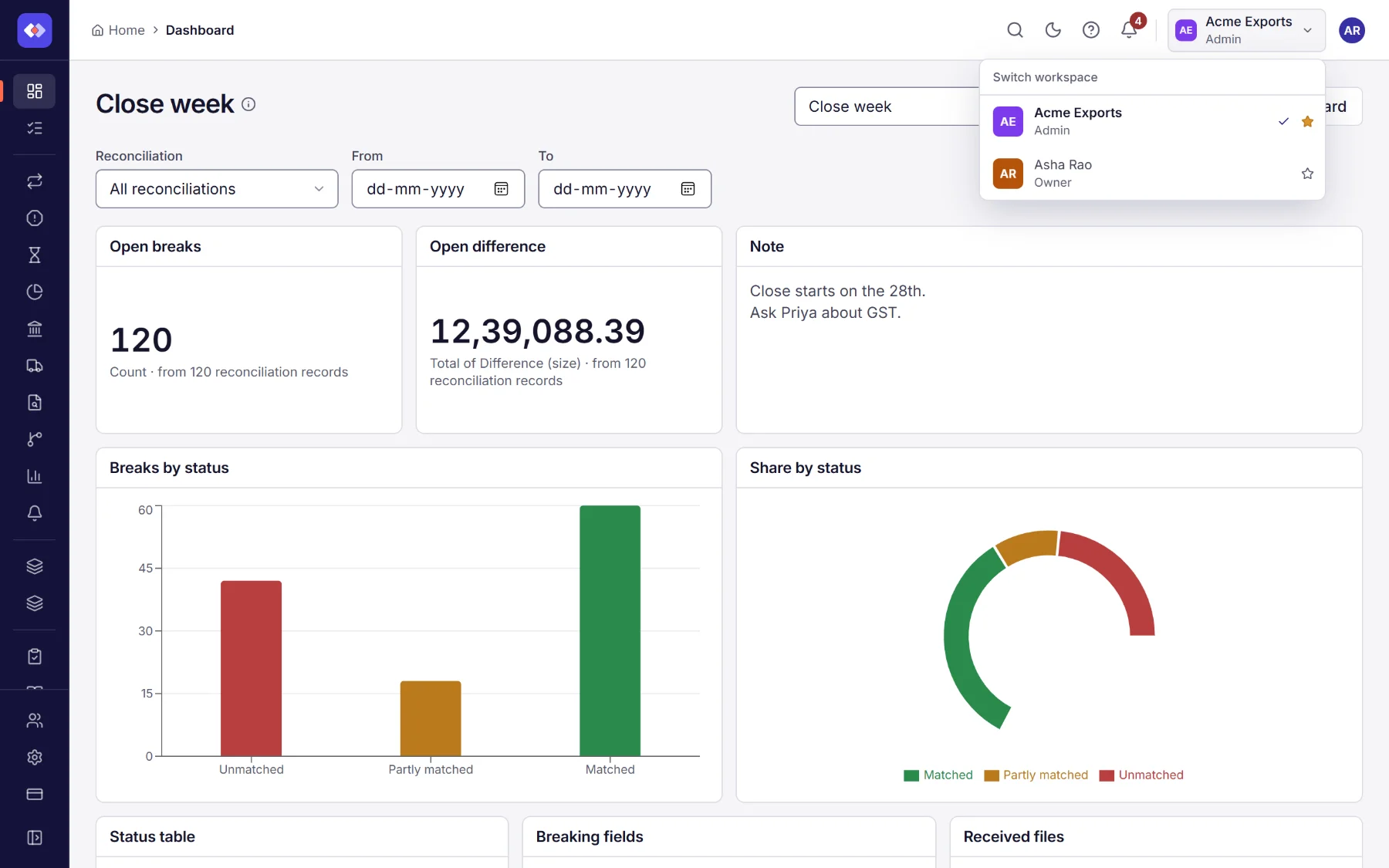
Section titled “Switching workspaces”Open the workspace name in the top bar (on a phone, at the top of the menu) and choose another workspace under Switch workspace. Each workspace keeps its own data and settings; what you see changes with your role there.
Several tabs. Each browser tab stays in the workspace it shows. If you switch workspace in one tab, the others say You switched to … in another tab and keep working in their own workspace until you choose Switch this tab too (or Stay here). A tab you open afterwards opens in the workspace you switched to.
Your default workspace
Section titled “Your default workspace”When you belong to more than one workspace, choose the one RefinePoint opens when you sign in:
- select the star next to it in the workspace menu (select it again to clear the choice), or
- choose it under Open when I sign in in Settings → Organization.
Without a choice, RefinePoint opens the first workspace you belong to. Switching workspaces from the top bar does not change your default. If you leave your default workspace, the usual order applies again.