
Running a reconciliation
Open a reconciliation from the list to see its page. The header shows its name, its status and the sides it compares, with Edit (open the designer) and Reconcile now.
Three ways to run
Section titled “Three ways to run”| How | When to use it |
|---|---|
| Reconcile now | Any time, by hand: Rerun with the latest data, or New run with new files (below). Sides that read a file for each run are given their files here. |
| When files arrive | Set up a route with Run when every side has a new file or Run for every file. Best for daily statements. |
| On a schedule | At set times, such as 6:00 every weekday, or once at a date and time. Set it on the reconciliation’s Schedule tab; see Scheduled jobs. Every side needs a data source for this. |
Reconcile now
Section titled “Reconcile now”When a side reads a file for each run (see Files or data sources), Reconcile now asks for the file of each such side, then runs. The files are read the usual way and kept with the run: History shows what each side read, and Run again with this data runs on the same files.
Otherwise Reconcile now has two choices:
-
Rerun with the latest data: runs straight away with each side’s current data. Sides read from a web link or a connected system are fetched again first.
-
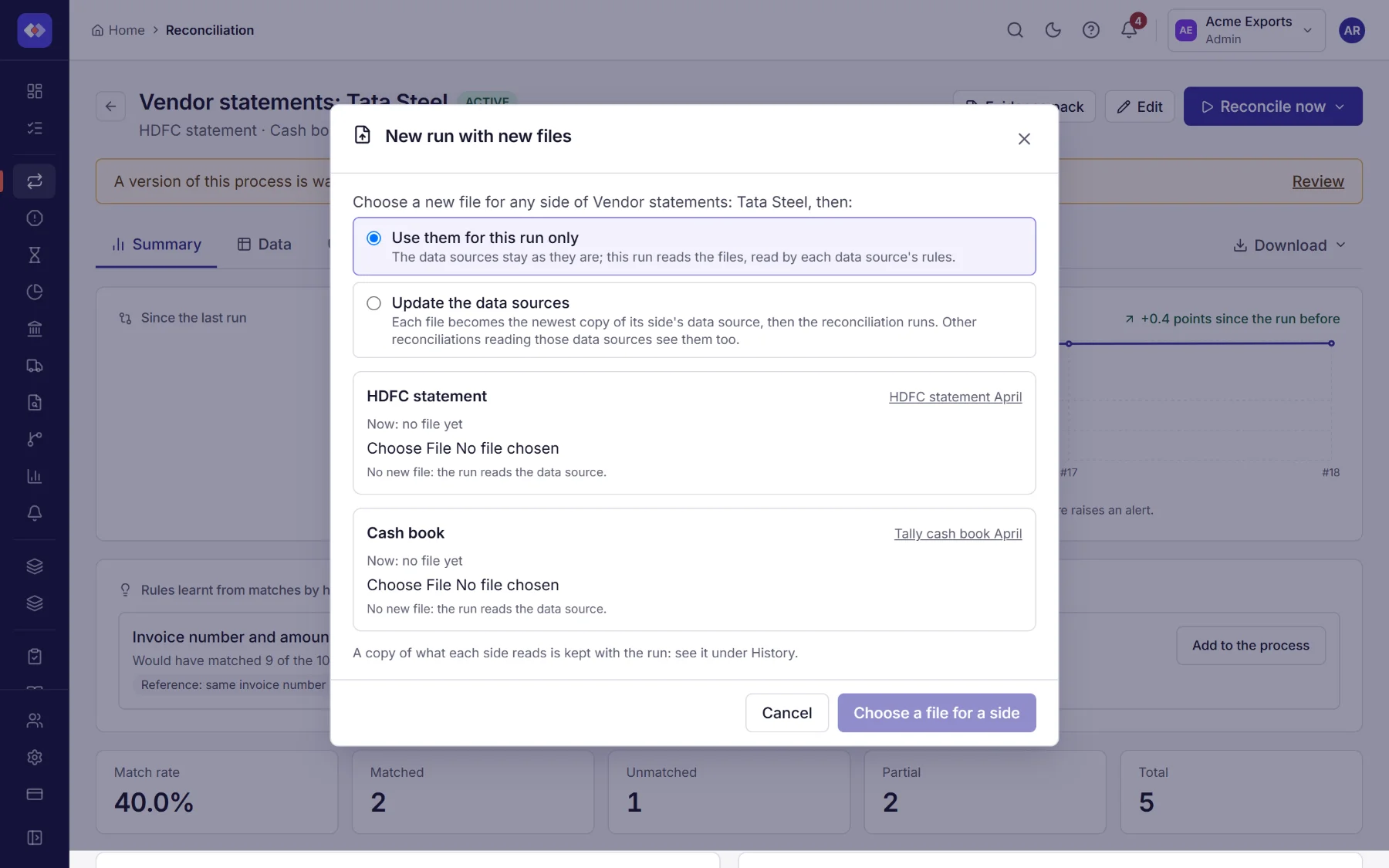
New run with new files: shows each side of the reconciliation with what it reads now. Choose a new file for any side, then one of:
- Use them for this run only (the default): the run reads the files, each read by its side’s data source rules (bank statements and tax files converted, a template’s format checked), and the data sources stay as they are. Any side can take a file this way, also one read from a web link or a connected system. Data quality rules, which hold failing rows of stored files as error records, do not apply to these files.
- Update the data sources: each file becomes the newest copy of its side’s data source, then the run starts. Sides read from a web link or a connected system are fetched instead, so they have no upload. Other reconciliations that read the same data sources see the new files too.
Sides without a new file read their data source as usual.
Every run uses the reconciliation’s live version, and records which version it used, so you can always tell which set-up produced a result. Data sources connected to other systems are read again at the start of each run.
The tabs
Section titled “The tabs”Summary
Section titled “Summary”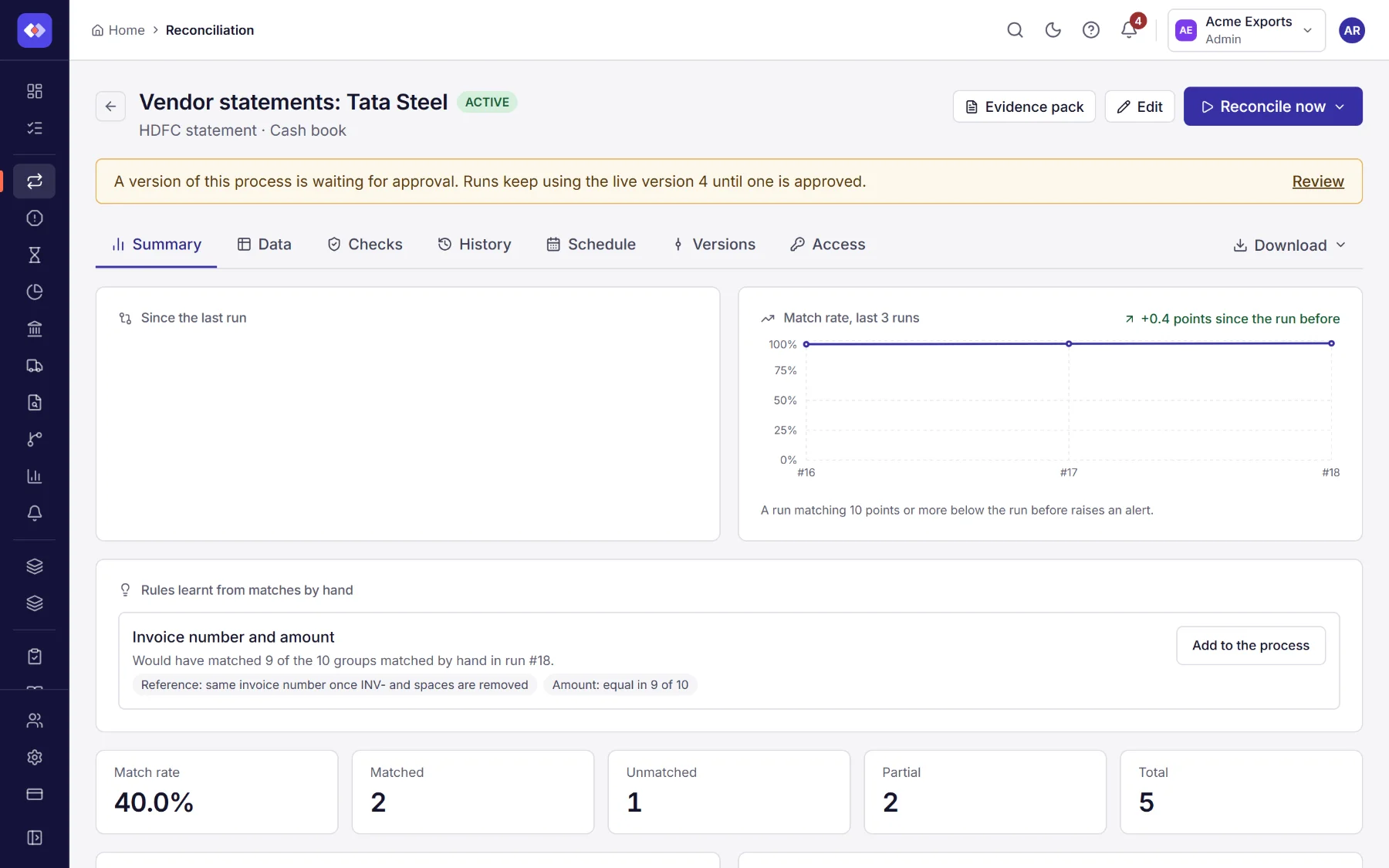
How the reconciliation works, in words (its passes, checks and reason codes), and the latest run at a glance: match rate, matched, unmatched and partly matched records, and the total difference. Above them:
- Run #N against run #N−1: what changed since the run before. New breaks (records that are breaks now and were not), Cleared (breaks then, matched or gone now) and Still open, counted in records; choose a number to list them. Below, the records that came or went on each side. A record is recognised across runs by its content (or, in a two-sided reconciliation, by its side and key), so this works without anyone labelling anything. A run whose records are archived is restored before it can be compared.
- Match rate, last runs: the match rate of up to the last 20 runs. A run whose match rate falls 10 points or more below the run before raises a warning alert, and the person who started it gets a notification: often the first sign of a broken feed or a changed file layout.
- Rules learnt from matches by hand (reconciliations built in the designer): once people have matched at least three groups by hand in the latest run, RefinePoint compares those records field by field and suggests a matching pass that would have matched them: the keys they agree on (exactly, or as the same reference once punctuation and leading zeros are ignored), the amount tolerance and the date window they needed. Each suggestion says how many of the matches by hand it would have made. Add to the process opens the designer with the pass added last; review it and save. Like any change, it applies to runs once the version is live (after approval, where approval is needed). Without a key in common, the suggested pass only suggests links for a person to confirm.
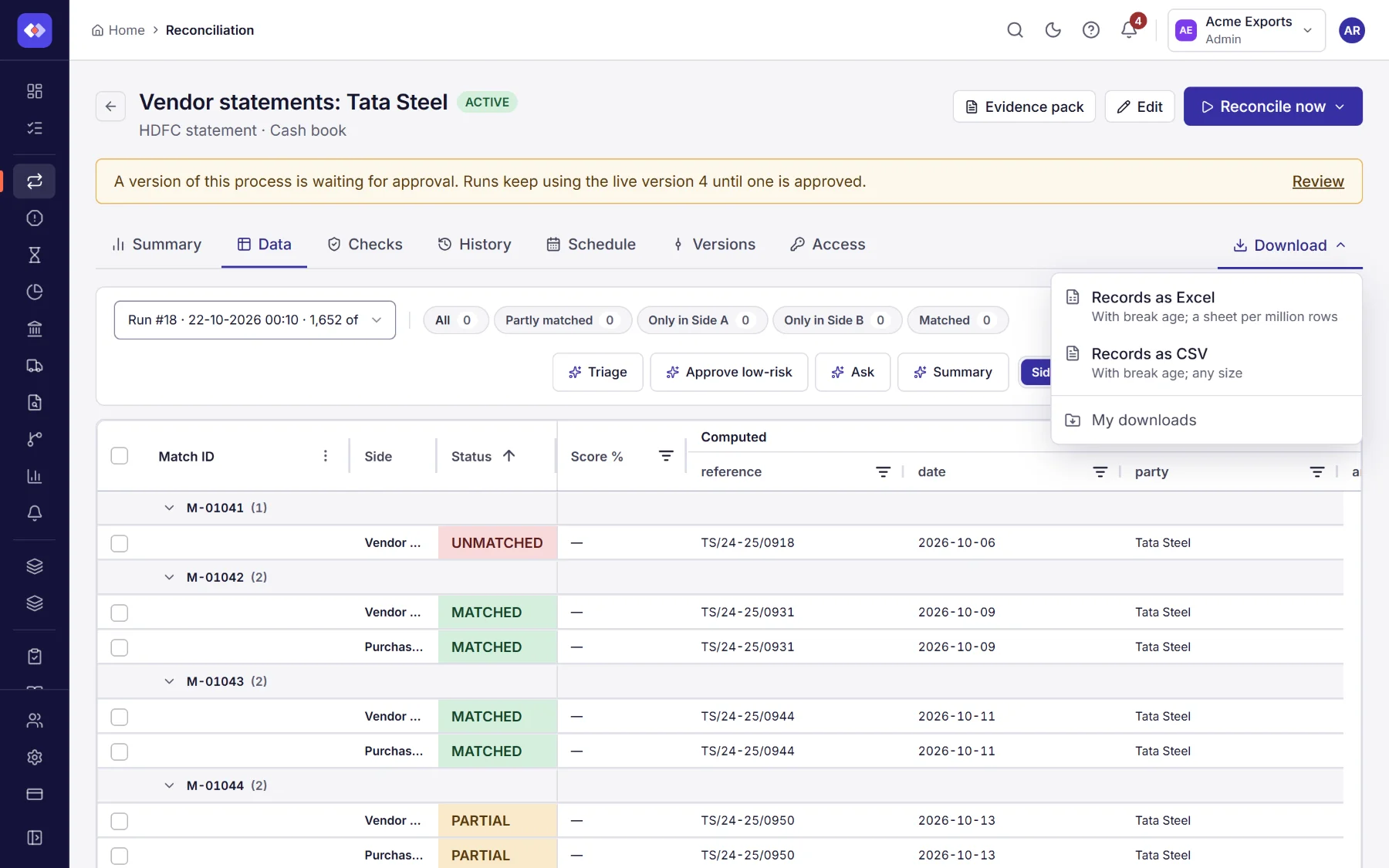
The records of a run, side by side. Choose the run at the top, filter by status (All, Matched, Partial, Unmatched, Duplicate, Filtered) and search.
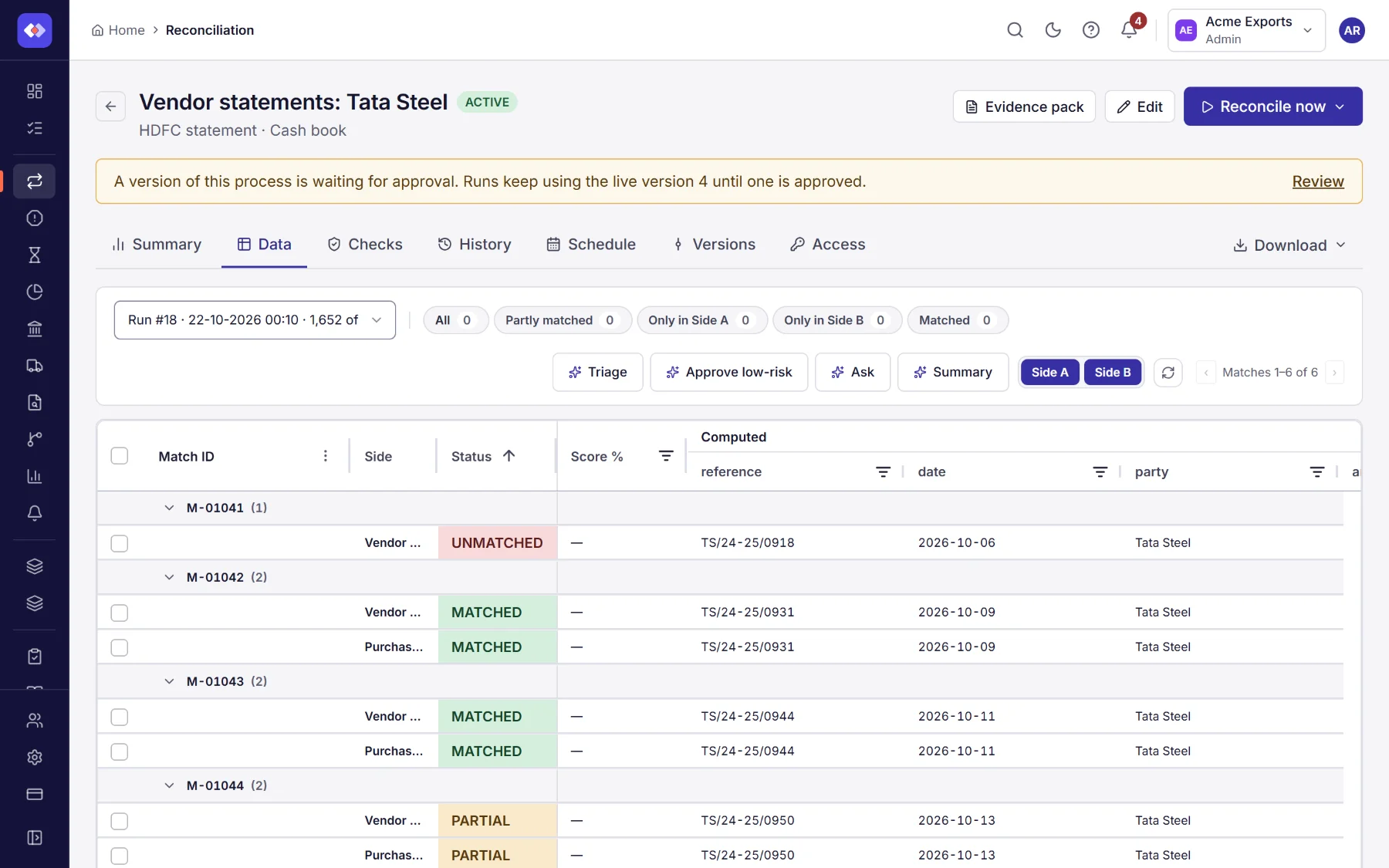
Records are grouped by Match ID: the records RefinePoint matched together (one from each side, or more) sit under their match, and a record left unmatched has a group of its own. Every group is open; the pages move a whole number of matches at a time (Matches 1–100 of 412), so a pair is never split across pages.
- The Match ID column comes first and stays in place while you scroll sideways. Select the arrow on a group to close or open it.
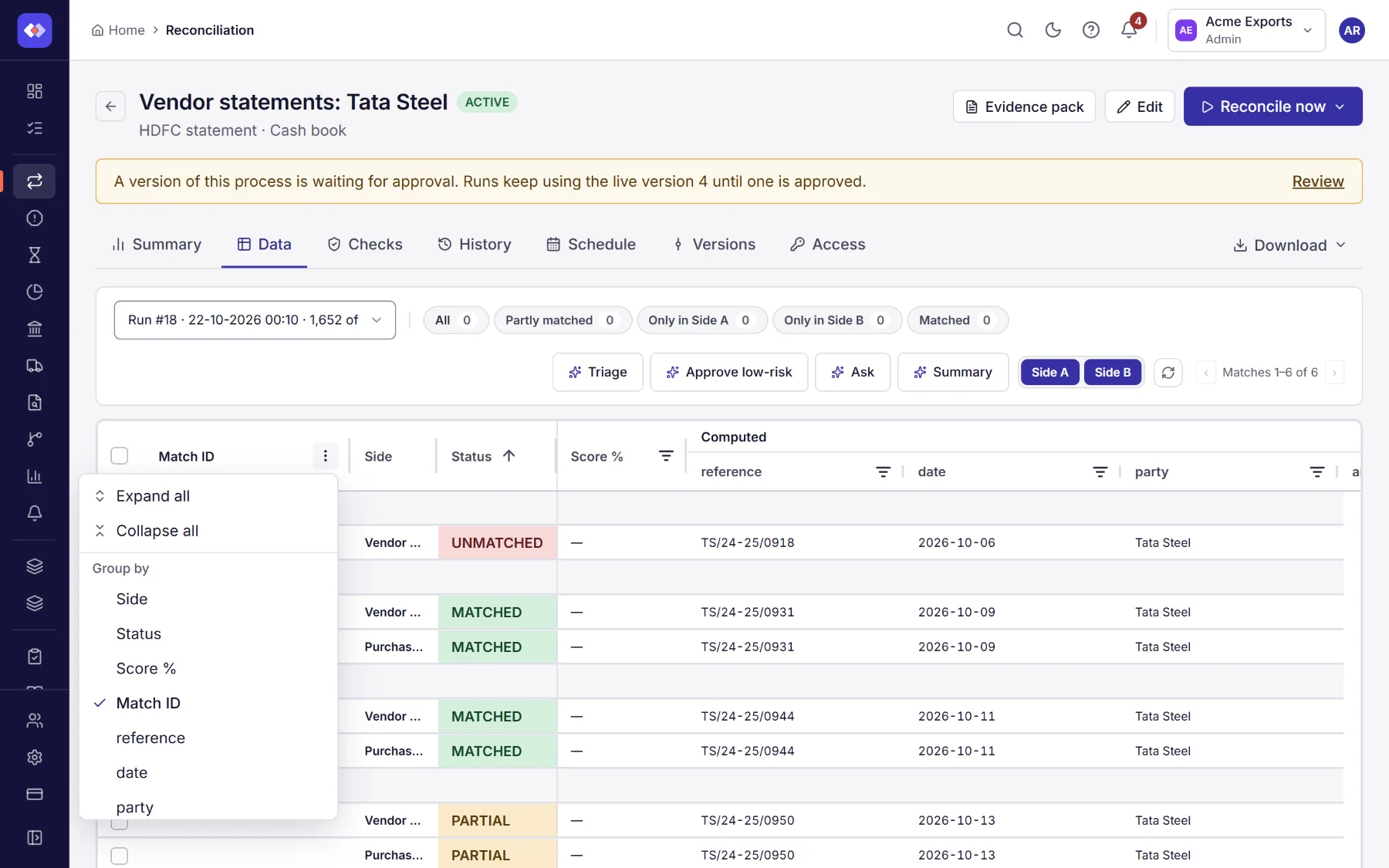
- The ⋮ menu in its header has Expand all, Collapse all, and Group by another column, such as Status or Side, to see the records that way instead. The grouped column is shown in the first column rather than twice.
- Sorting a column sorts the records within each group; the groups keep the order of the run.
- Select a record to see its match details: every field on each side, marked Same or Differs.
- Select several records to Comment on them or Apply labels.
When AI is on, a row of helpers sits above the table:
| Helper | What it does |
|---|---|
| Summary | A short written summary of the run. |
| Triage | Groups the exceptions by cause and ranks them, so you know where to start. The groups and ranking are computed from the results. |
| Approve low-risk | Approves differences that are only case, spacing or rounding. These rules are fixed, not decided by an AI model, and each use is written to the audit log. |
| Ask | A question about the results in plain words, such as Unmatched items over 10,000. |
Checks
Section titled “Checks”The result of every check for the chosen run: passed, warning, failed or for information, with the figures and the rows flagged.
History
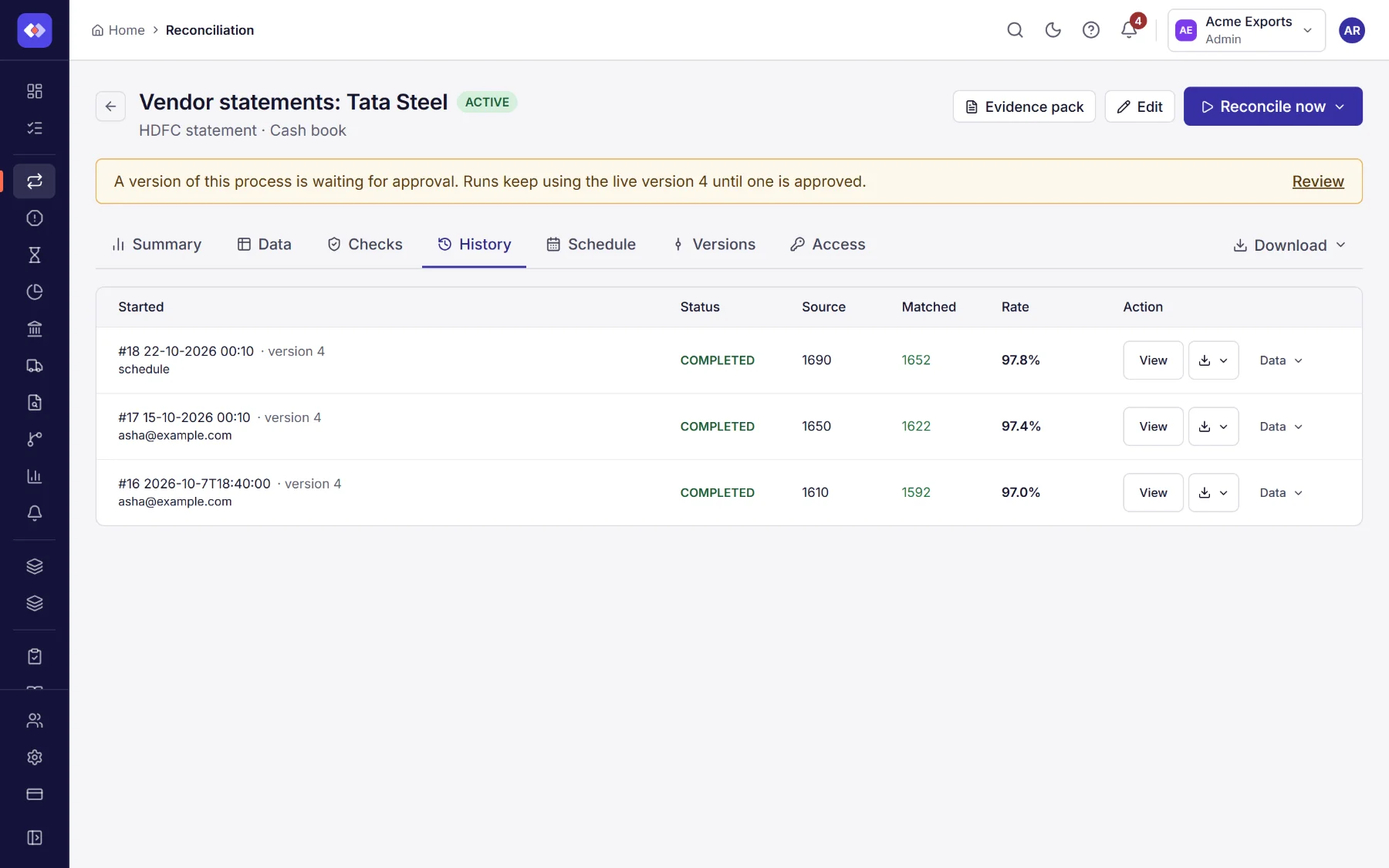
Section titled “History”Every run: when it started and finished, who or what started it (a person, the schedule, a file), which version it used, how many records each side had, how many matched, the match rate. Open a run to see its data.
Data on a run shows what each side read: its data source, or the file given for that run only, with how many rows and columns. A copy of the rows each side read is kept with the run, so a result can always be traced to its data: Rows downloads it (CSV, compressed), and File downloads a file given for the run as it was uploaded. They are kept as long as the run.
Run again with this data starts a new run on exactly what each side of that run read, with the reconciliation as it is now: to see what a change to its rules does to last month’s data, or to reproduce a result for an auditor. The new run’s Data says which run’s data it read.
Schedule
Section titled “Schedule”When the reconciliation runs on its own, if it has a schedule: every day, weekday, week or month at a time, every few minutes, hours or days, or once, in words with the next run times. People who may schedule runs can add, change, pause or remove it here. See Scheduled jobs.
Download
Section titled “Download”Download at the end of the tabs saves a run’s records as CSV or Excel, with every field, for your own analysis or your auditors. The file is prepared in the background: carry on working, and you get a notification when it is ready to save. A file someone already asked for, for the same run and format, is ready at once. Your files are under My downloads.
Versions and Access
Section titled “Versions and Access”Versions lists the live version, versions being prepared, waiting for approval, and history. See Versions and approval. Access says who can open it and with what role. See Access to a reconciliation.