
Scheduled jobs
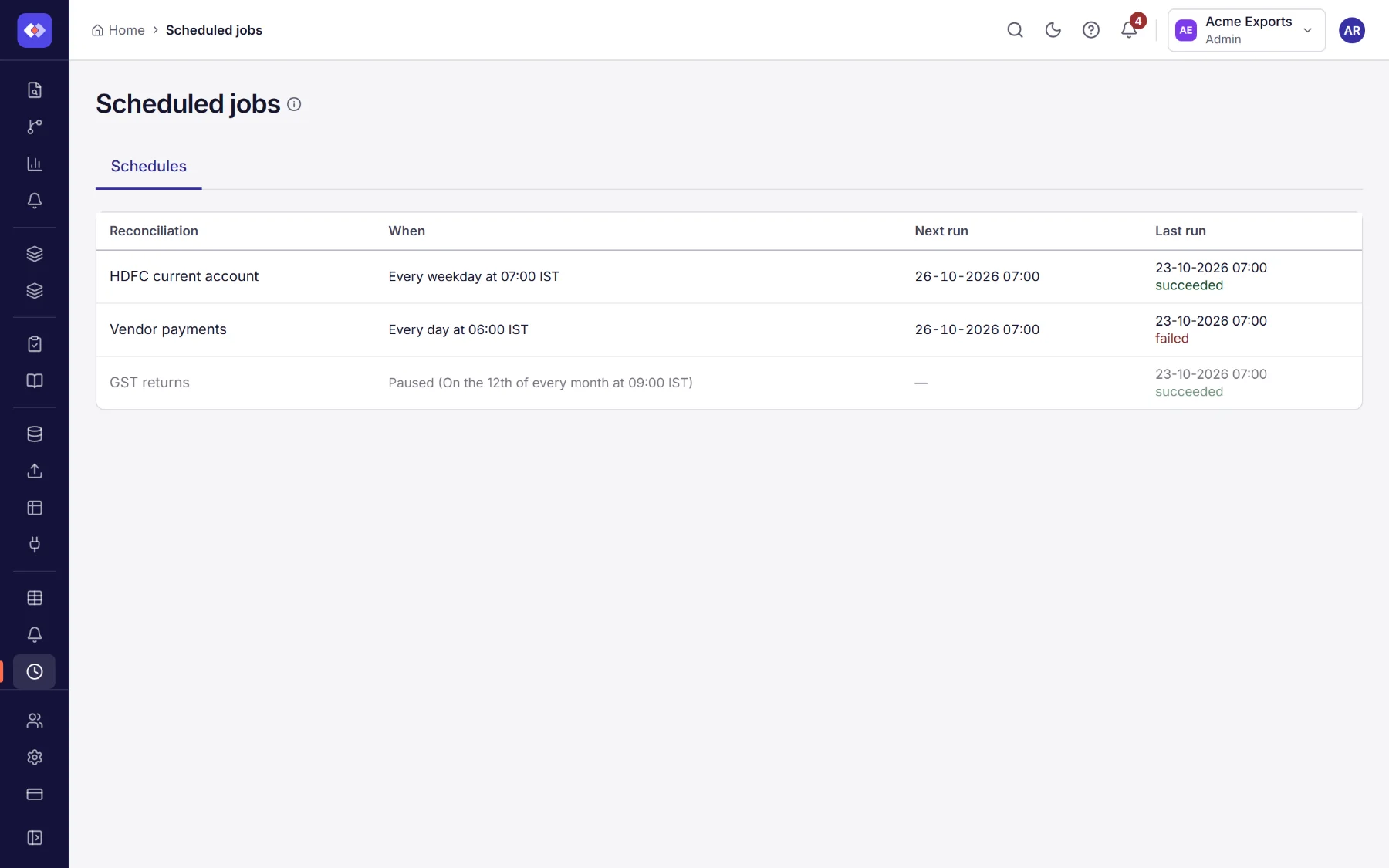
Reports and monitoring → Scheduled jobs shows what runs on its own. It has two tabs: Schedules for the reconciliations that run at set times, and Admin, which only RefinePoint’s own administrators see.
Schedules
Section titled “Schedules”The Schedules tab lists the reconciliations that run on their own: when, the next run and the last run. It is for people who may schedule runs (Schedule runs, under roles and permissions). A process appears only if you can see it.
To schedule a reconciliation, open it and go to its Schedule tab (or the Schedule step when you set it up).
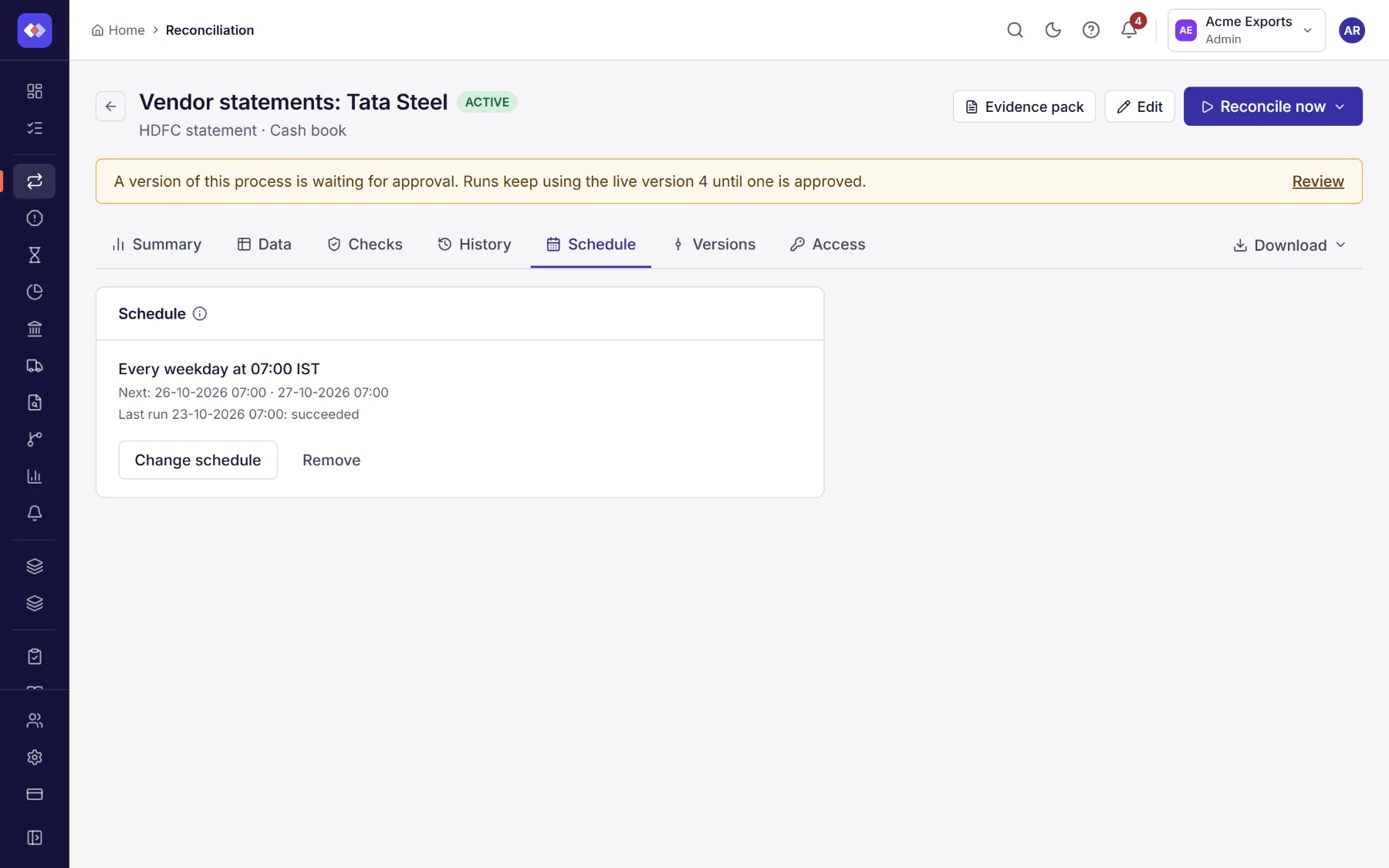
- Choose how often: every day, every weekday, every week on a day, every month on a day (or the last day), every few minutes, hours or days, once on a date and time, or a cron expression for anything else.
- Set the time and the time zone.
- Check the line under the form. It says the schedule in words (Every weekday at 07:00 IST) and lists the next five run times.
- Save schedule. Turn On off to pause it without losing it. Remove deletes it.
A reconciliation has one schedule. If it is deleted, its schedule goes with it.
Cron expressions
Section titled “Cron expressions”A cron expression has six parts: second, minute, hour, day of the month, month and day of the week.
| Expression | Runs |
|---|---|
0 0 6 * * ? |
Every day at 6:00 |
0 30 7 ? * MON-FRI |
Weekdays at 7:30 |
0 0 9 1 * ? |
On the 1st of every month at 9:00 |
0 0 */4 * * ? |
Every four hours |
You can also describe the schedule in words (every weekday at 7am) and use Convert.
The Admin tab is for RefinePoint’s own administrators (super admins); workspace owners and admins do not see it. It holds the platform’s jobs over every workspace, such as the nightly Data retention that deletes runs older than each workspace’s plan keeps them. A job does one kind of work, chosen by its job class, with the parameters that class asks for, and runs once or on repeat.
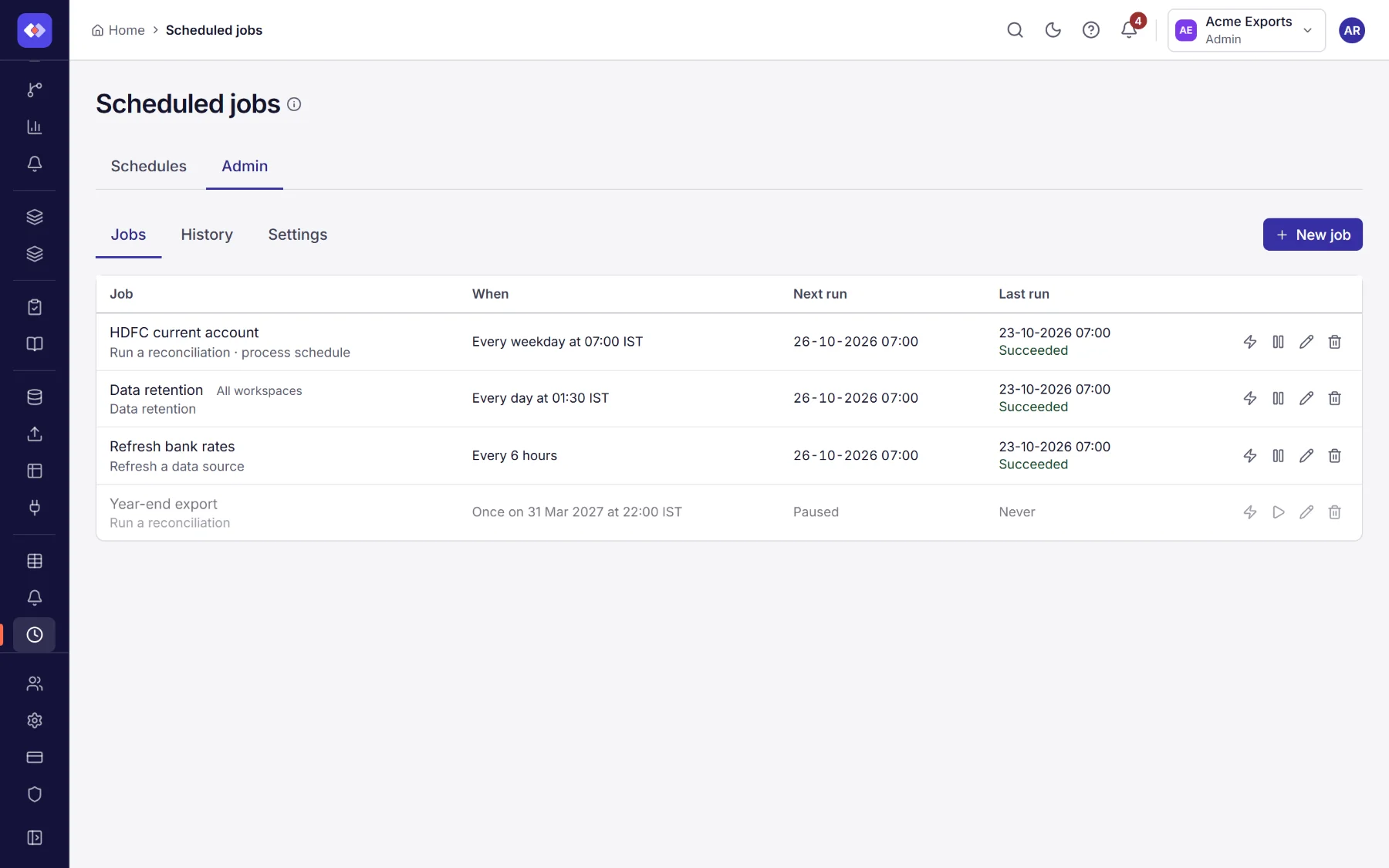
Each job shows when it runs, its next run and how the last one went. The buttons are Run now, Pause or Resume, Edit and Delete. Run now does not change the schedule. A job that is already running cannot be started again.
Job classes
Section titled “Job classes”| Job class | What it does | Parameters |
|---|---|---|
| Run a reconciliation | Runs a reconciliation and reports its result (a reconciliation’s schedule is a job of this class) | The process, and whether to wait for the result |
| Refresh a data source | Fetches a data source with a web link or a connection again | The data source |
| Data retention | Deletes run results older than your plan keeps them (30, 90 or 365 days) | Optionally fewer days, and Only count to see what would go |
Data retention never deletes the latest completed run of a reconciliation, a run still going, or runs the close depends on: those in a locked period or behind a certified account. It runs every night for every workspace.
New job
Section titled “New job”New job opens a form.
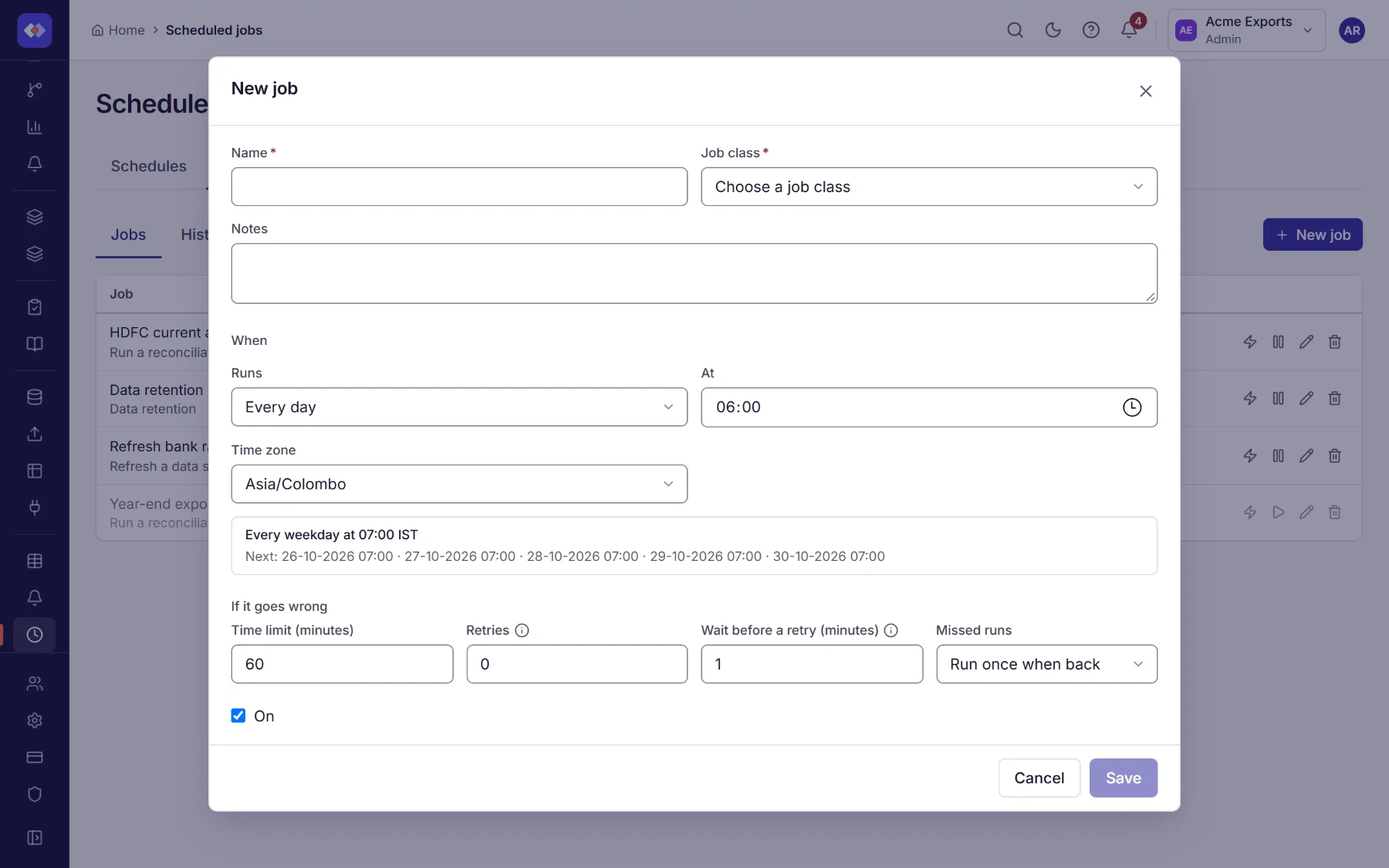
- Name and Job class. The form then shows the parameters of that class. Required ones must be filled.
- When: once or on repeat, built the same way as a reconciliation’s schedule, with the words and next five times.
- If it goes wrong: a time limit (a job still running after it is stopped and marked Timed out), how many retries and how long to wait before the first (the wait doubles each time), and what to do about missed runs if the system was down at the time: run once when back, or skip them.
- On turns the job on or off.
If what a job works on is deleted (a reconciliation or data source), the run fails and the job pauses itself, with the reason shown. Resume it after fixing it.
History
Section titled “History”Every time a job ran, newest first: what ran, when it started, how long it took, its status, what started it (Schedule, Run now or One time) and the result.
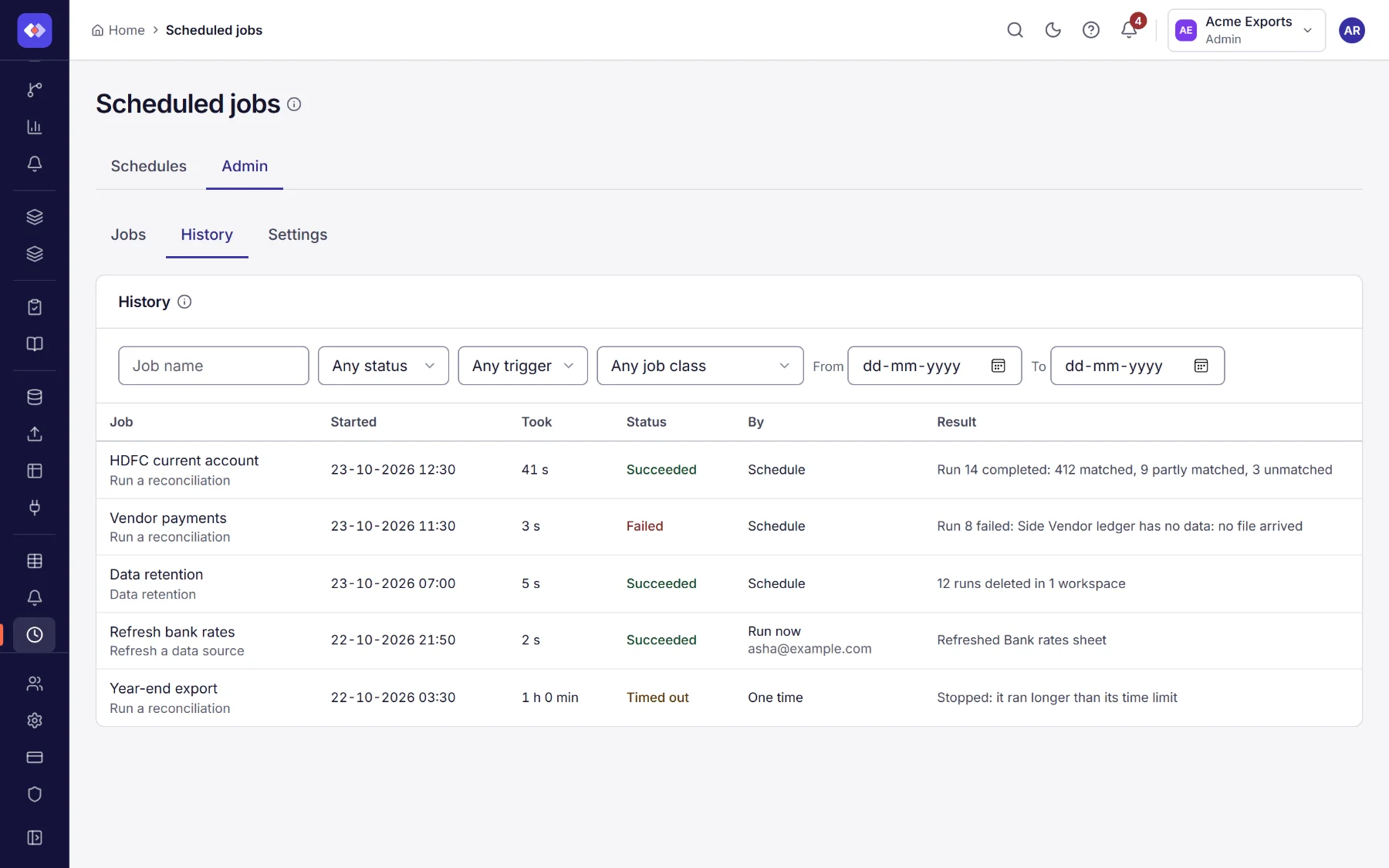
Filter by job name, status (Running, Succeeded, Failed, Cancelled, Timed out), what started it, job class and dates. Select a row to open its details.
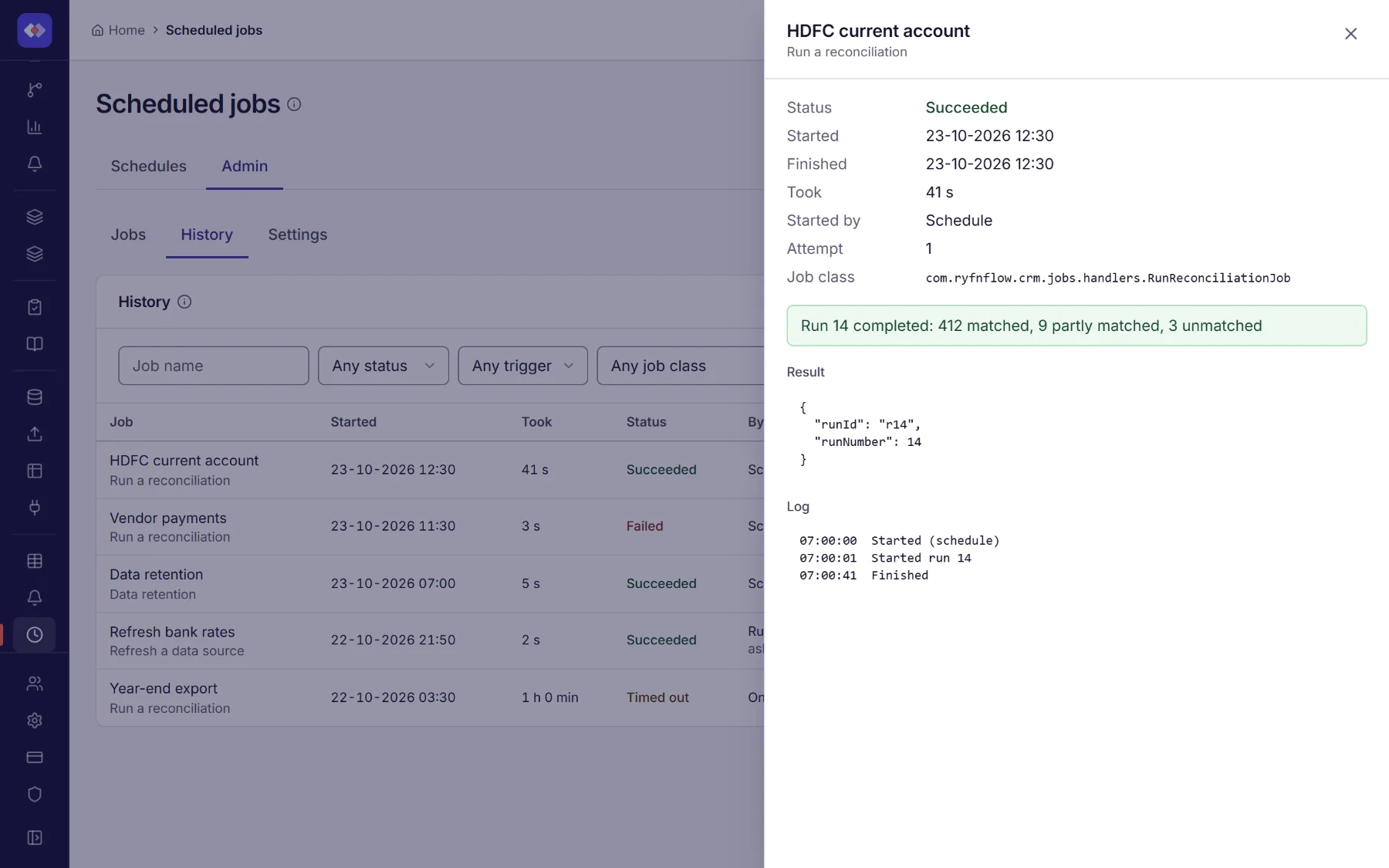
The details show the times, the attempt (2 and up are retries), the result and the log. A run that is still going can be cancelled from here. A failed run of a reconciliation also raises an alert.
Settings sets how many days of history are kept (90 by default, 7 to 3650).